17-9
User
Guide

for

the

Cisco

Application

Networking

Manager

5.2
OL-26572-01
Chapter
17


Monitoring

Your

Network
Using
Dashboards

to

Monitor

Devices

and

Virtual

Contexts


Denies/Second—Number
of

de

nied

resources
(per
second)
as

a


result

of

oversubscription

or
resource
depletion.


Total
Deny

Count—Number

of
denied
uses

of

the

resource

since

the

resource

statistics

were

last
cleared.


Last
Polled

Count—Date

and

time

of

the

last

time

that

ANM

polled

the

device

to

display

the

current
va
l

ues

.
Note
The
Context

With

Denied

Resource

Usage

Detected
table
does
not

di

splay

t

he

st

icky
denied

resource
count
because

this

count

does

not

increment

when

the

ACE

sticky

resources

are

exhausted.

The

ACE’s
sticky
table

can

hold

a

maximum

of

four

million

entries

(four

million

simultaneous

users).

When

the
table
reaches

the

maximum

number

of

entries,

additional

sticky

connections

cause

the

table

to

wrap

and
the
first

users

become

unstuck

from

their

respective

servers.
A
hyperlink

allows

you

to

access

the

Resource

Usage

monitoring

page

to

view

a

detailed

list

of

resources
used
and

denied

counts

(see

the

“Monitoring

Resource

Usage”

section

on

page

17-26 ).
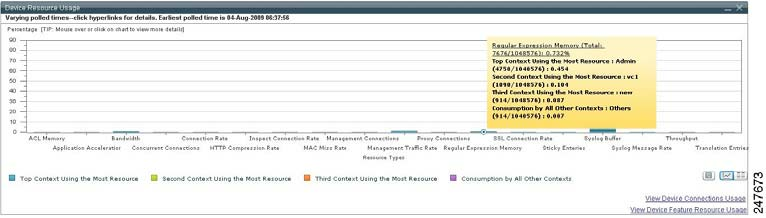
Device
Resource

Usage

Graph
For
each

resource

type,

the

ACE

Dashboard

di

splays

the

Top

3

vi

rtual

contexts

that

consume

t

he
resources
in

the

Device

Resource

Usage

graph

(Figure

17-2 ).

A

tooltip

is

added

to

display

the

Top

3
context
names

and

their

consumption,

consumption

of

the

resource

by

rest

of

the

contexts

and

the

total
consumption
by

all

contexts.

This

data

is

collected

by

ANM

by

using

the

ACE

show

resource

usage

CLI
command.
The

timestamp

shown

in

the

status

bar

indicates

a

varying

poll

time;

that

is,

different

virtual
contexts
were

polled

and

those

context

had

different

time

stamps.

The

earliest

time

stamp

of

the

polled
virtual
contexts

is

displayed

in

the

status

bar.
Figure
17-2
Device
Resource

Usage

Graph
To
toggle

the

display

of

the

Device

Resource

Usage

graph

in

the

monitoring

window:


Click
Vi
e

w


As


C

h

a

r

t


to
display
the
object

data

as

a

graph.


Click
Vi
e

w


As


Gr

i

d


to

display

the

object

data

as

a

numerical

line
grid.
Note
If
you

want

t

o
save
the

gr

aph

as

a

JPEG

file
for
ar

chive

or

ot

her

pur

poses,

click

t

he
Show
As

Image
button.
When

you

mouse

over

the

graph,

the

Image

Toolbar

appears.

From

t

he

Image

Toolbar,

you

can
save
the

graph

as

a

JPEG

or

send

it

in

an

email.

You

can

also

print

the

graph

if

desired.
If
you

want

to

export

object

data

to

Microsoft

Excel

for

archive

or

other

purposes,

click

the

Export

to
Excel
link

in

the

View

As

Grid

object

display.