17-5
User
Guide
for
the
Cisco
Application
Networking
Manager
5.2
OL-26572-01
Chapte
r
17
Monitoring
Your
Network
Using
Dashboards
to
Monitor
Devices
and
Virtual
Contexts
ACE
Dashboard
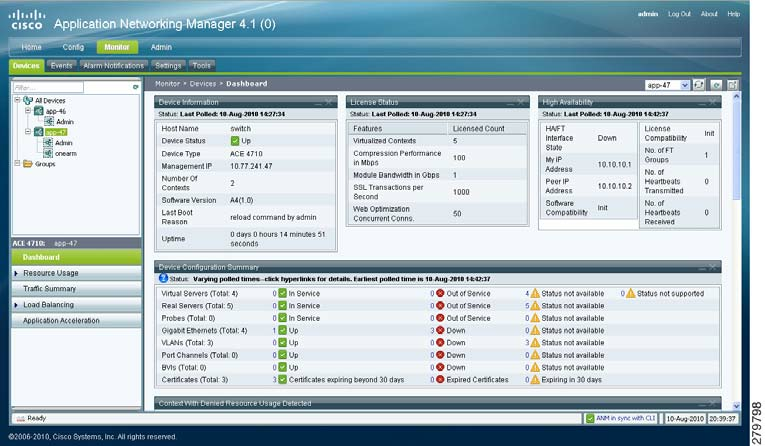
The
ACE
Dashboard
displays
the
information
related
to
the
ACE
module
or
ACE
appliance
that
is
selected
in
the
device
tree.
You
access
the
ACE
Dashboard
by
selecting
Monitor
>
Devices
>
ACE
>
Dashboard
.
Figure
17-1
illustrates
the
individual
components
of
the
ACE
Dashboard.
Note
The
ANM
software
version
that
displays
across
the
top
of
the
window
varies
depending
on
your
version
of
ANM.
Figure
17-1
Example
ACE
Device
Dashboard
To
enhance
your
viewing
of
t
he
monitoring
information
i
n
the
ACE
Dashboard,
you
can
perform
the
following
actions:
•
Click
and
drag
an
individual
dashboard
pane
to
move
it
to
another
location
within
the
ACE
Dashboard.
•
Use
the
Collapse/Expand
buttons
at
the
top
right
side
of
each
dashboard
pane
to
minimize/maximize
a
pane
within
the
ACE
Dashboard.
•
Click
the
Remove
button
to
remove
a
dashboard
pane
from
the
ACE
Dashboard.
Click
the
Bring
Back
Closed
Dashboard
Panes
button
at
the
top
of
t
he
ACE
Dashboard
to
open
t
he
closed
dashboard
pane.
Note
When
you
close
any
of
the
panes
in
a
dashboard
by
clicking
the
Remove
button,
all
of
the
headers
in
the
ot
her
dashboard
panes
t
urn
black
to
indicate
that
a
pa
ne
has
been
closed.
To
return
the
dashboard
panes
to
normal,
click
the
Bring
Back
Closed
Dashboard
Panes
button
to
reload
the
removed
dashboard
pane.
•
Click
the
Screen
View
(Full)
/
Screen
View
(Normal)
buttons
to
display
a
larger
(full)
window
view
for
the
ACE
Dashboard.