1-10
User
Guide

for

the

Cisco

Application

Networking

Manager

5.2
OL-26572-01
Chapter
1


Overview
ANM
Interface

Components
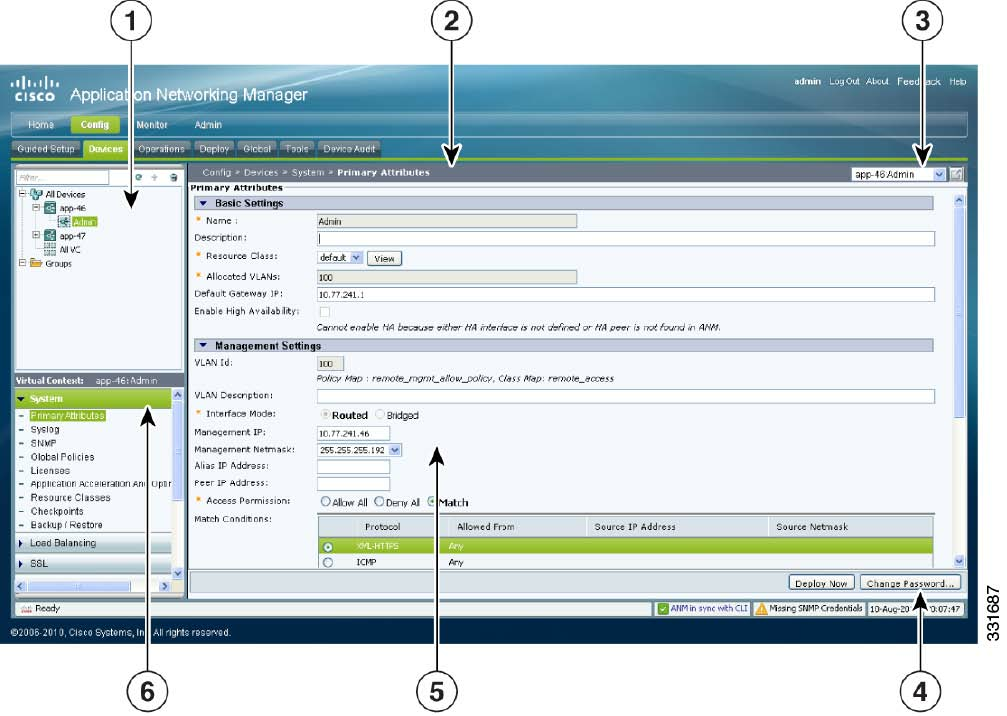
Figure
1-3
Example
ANM

Window
Ta
b

l

e


1-2
Example
ANM

Window

Descriptions
Number
Description
1
Device
t

ree

t

hat

appears

when

you

click

Config

or

Monitor.

The

device

tree

includes

All

Devices

and

Groups
folders:


The
All
Devices
folder

expands

to

show

the

names

of
imported

Cisco

devices

and

their

associated

modules

or
virtual
contexts.

When

you

click

t

he

plus

sign

(+)

in

fr

ont

of

a

ch

assis

i

con,

you

can

see

a

list

of

t

he

modules
in
the

chassis.

When

you

expand

an

ACE

appliance

or

ACE

module,

you

can

see

the

list

of

existing

virtual
contexts
for

that

device.

For

more

information

about

adding

devices,

see

the

“Importing

Network

Devices

into
ANM”
section

on

page

5-10 .


The
Groups
folder

contains

t

he
list
of
user-defined

gr

oups.

For

more

i

nformation

about

user-defined

groups,
see
the

“Configuring

User-Defined

Groups”

section

on

page

5-72 .
The
Organization

tree

displays

when

you

click

Admin

>

Role-Based

Access

Control.

The

organization

tree

includes
all
organizations

in

ANM.

Choosing

an

organization

name

displays

its

details.
To
expand

folders

in

the

device

tree,

click

the

plus

sign

(+)

to

the

right

of

an

option.

To

collapse

the

structure,

click
the
minus

sign

(-).
At
the

top

of

the

tree

are

the

following

buttons:


Refresh—Refreshes
the

device

tree

after

you

have

imported

devices

or

made

changes

to
the
User

Groups.


Plus
sign

(+)

—Allows

you

to

add

an

item

to

the

selected
option
in

the

device

tree.


Garbage
can—Deletes

the

selected
entry.
Note
Menus
are

based

on

device

types.

Although

menu

labels

are
the
same

for

different
device

types,

the

actual
menu
definition

is

different.

For

example,

you

cannot

preserve

the

menu

state

while

traversing

back

an

forth
from
a

module

to

a

virtual

context

in

the

device

tree.
2
Option
menus,

which

appear

in

Config

windows.

Click

the

icon

on

the

bar

to

show

or

hide

the

options.